My mom sent me a box of old photos last Christmas. Twenty-three prints from the 1970s — my parents’ wedding, my grandparents’ farm, my mom as a teenager in clothes that have somehow come back into style. Most were faded, scratched, or so low-resolution you could count the pixels. A few had water damage from a basement flood in 1994.
She asked if I could “do something with them on the computer.” I said yes, having no idea what I was getting into.
Three months and roughly $200 in software later, I’ve restored all 23 photos using a combination of AI tools. Here’s what I learned about which tools actually work, which ones overpromise, and how to restore old photos without making them look like AI-generated abominations.
The Short List
- Best for face restoration: Remini — the face enhancement is uncanny but can go too far
- Best for overall quality and control: Topaz Gigapixel — the most professional tool, with the price to match
- Best free option: GFPGAN — not as polished, but completely free and surprisingly good
- The golden rule: Less is more. The biggest mistake people make with AI restoration is over-processing. Your grandma shouldn’t look like a video game character.
Why AI Photo Restoration Is Different in 2026
Photo restoration used to require Photoshop expertise, hours of manual work, and a good eye for detail. You’d clone-stamp scratches, adjust levels for faded colors, and manually sharpen blurry areas. A single photo could take 2-3 hours.
In 2026, AI can do 80% of that work in seconds. But — and this is crucial — the AI doesn’t know what your grandmother actually looked like. It’s making educated guesses based on its training data. Sometimes those guesses are accurate. Sometimes they give your grandfather an extra tooth.
The tools I tested represent three different philosophies:
- Remini: “We’ll handle everything. Trust us.” (Convenient, but limited control)
- Topaz Gigapixel: “Here are the controls. You decide.” (Maximum control, steeper learning curve)
- GFPGAN: “We’ll fix the faces. You handle the rest.” (Specialized, needs companion tools)
How I Tested
I selected 5 of the most damaged photos from the box:
1. Wedding photo (1973): Faded colors, moderate scratches, faces were soft but recognizable
2. Farm photo (1975): Severe yellowing, water damage spots, grain the size of golf balls
3. Portrait of my mom (1978): Relatively good condition, but low resolution (scanned from a wallet-size print at 300 DPI)
4. Group photo (1976): 12 people, everyone’s face was about 20×20 pixels, significant motion blur
5. Grandparents’ house (1971): Landscape orientation, faded to near-monochrome, corner tear
I ran each photo through all three tools, comparing:
- Face restoration quality (most important — people look at faces first)
- Detail recovery (could I read the sign in the background?)
- Color restoration (did the AI guess the right colors?)
- Artifacts (did the AI invent things that weren’t there?)
- Processing time (some tools are instant, some took minutes)
Remini: The Face Whisperer
Remini went viral a few years ago for its “enhance” feature that could turn blurry face photos into sharp, detailed portraits. The 2026 version has expanded significantly, adding full-photo restoration, colorization, and scratch removal. But faces are still its superpower.
The face enhancement: This is genuinely impressive and slightly unsettling. You upload a photo, and Remini detects every face, then reconstructs them using AI. The results on my mom’s portrait were transformative — from a soft, slightly blurry 300-DPI scan to something that looked like it was taken on a modern smartphone.
The AI added realistic skin texture, sharpened eyes and hair, and reconstructed facial features with anatomical accuracy. My mom cried when she saw the result. That’s the good part.
Where it goes too far: On my dad’s face in the wedding photo, Remini added a level of detail that didn’t exist in the original. It sharpened his jawline, enhanced his eyes, and smoothed his skin in a way that made him look like a different person. A better-looking person, but not my dad. When I showed my mom, she said “that’s not what he looked like.”
This is Remini’s fundamental tension: it makes photos look BETTER, but sometimes better means LESS authentic. The AI has a bias toward conventionally attractive features — smoother skin, sharper jawlines, more symmetrical faces. If your relative had acne scars or a crooked smile, Remini might “fix” things that weren’t broken.
Color restoration: Remini’s colorization is good but not great. It correctly identified green grass and blue sky in the farm photo, but it made my mom’s dress a weird shade of teal that she insists was actually navy blue. Color restoration without reference photos is always guesswork, and Remini guesses wrong about 30% of the time.
Scratch and damage removal: This is where Remini shines for non-face work. The AI detected scratches, water spots, and tears, and filled them in convincingly. The water-damaged farm photo came out remarkably clean — the AI reconstructed the damaged areas by analyzing surrounding patterns. The corner tear in the house photo was repaired seamlessly.
Processing: Cloud-based. Upload your photo, wait 10-30 seconds, download the result. You need an internet connection and you’re sending your photos to Remini’s servers. For most people, this is fine. For sensitive or private photos, think twice.
What I like:
- Face enhancement is the best in class — when it works, it’s magical
- Scratch and damage removal is automatic and effective
- Batch processing: upload multiple photos at once
- The web interface is dead simple — literally drag, drop, wait, download
- Video enhancement is also available (restore old home movies)
- Free tier gives you 5 enhancements per day
What I don’t like:
- Face enhancement can over-smooth and create “AI face” — everyone starts looking like a stock photo model
- No control over the enhancement intensity — it’s all or nothing
- Cloud processing means your photos leave your device
- Premium pricing: $9.99/week or $69.99/year. Per week is absurd. Per year is reasonable if you have a lot of photos.
- Colorization guesses wrong about 30% of the time with no way to correct it
- Limited to 2x upscaling — can’t enlarge photos for printing
- The mobile app pushes aggressive subscription upsells
Best for: Anyone who wants “one click and done” face restoration for personal photos. Best results on portraits and photos with 1-3 people. The free tier (5/day) is enough for a small family photo collection.
Topaz Gigapixel: The Professional’s Choice
If Remini is an automatic car wash, Topaz Gigapixel is a professional detailing shop where you control every setting. It’s more work, but the results are better — especially for photos that need more than just face enhancement.
What it actually does: Topaz Gigapixel is primarily an AI upscaling tool — it increases image resolution while preserving (or even enhancing) detail. The 2026 version (Gigapixel 7) has added face recovery, denoising, and color correction, making it a complete photo restoration suite.
Upscaling quality: This is where Topaz destroys the competition. I upscaled the group photo (where each face was about 20×20 pixels) by 6x — from roughly 0.3 megapixels to 11 megapixels. The result was genuinely printable at 8×10. Faces were still slightly soft (20×20 pixels of source data can only be stretched so far), but they were recognizable and natural-looking.
The AI doesn’t just sharpen — it reconstructs detail. On the farm photo, it recovered wood grain texture on the barn that was invisible in the original. On the wedding photo, it restored the lace pattern on my mom’s dress. This is fundamentally different from traditional upscaling, which just smooths and sharpens.
Face Recovery AI: Topaz’s face recovery is more conservative than Remini’s. It enhances faces without making them look like different people. My dad still looked like my dad, just clearer. The tradeoff is that Topaz’s face enhancement is less dramatic — for severely damaged faces, Remini produces more impressive (if less authentic) results.
Noise reduction: The farm photo had grain like sandpaper from being shot on high-ISO film in low light. Topaz’s AI denoising removed about 90% of the grain while preserving actual detail. This is extremely difficult to do — most denoising tools smooth everything, creating a waxy, artificial look. Topaz distinguishes between noise (random grain) and detail (actual image features). It’s not perfect (there’s still some grain in the darkest shadows), but it’s the best denoising I’ve seen.
The learning curve: Topaz is not a “one click” tool. You need to understand what each setting does:
- Model selection: Standard, Artistic, Low Resolution, or Face Recovery — wrong model = bad results
- Suppress Noise vs. Remove Blur: A slider that fundamentally changes the output
- Output scaling: 2x, 4x, 6x — higher isn’t always better; upscaling too far creates artifacts
I spent about 2 hours learning the settings before I got results I was happy with. After that, I could process photos in 5-10 minutes each.
Processing: Local — everything runs on your computer. No internet required, no privacy concerns. Requires a decent GPU (NVIDIA RTX recommended). My RTX 4070 Ti Super processed the 6x upscale in about 45 seconds per photo.
What I like:
- Best upscaling quality of any tool — recover genuine detail, not just sharpen
- Face Recovery is conservative and natural-looking
- All processing is local — your photos never leave your computer
- Fine-grained control over every aspect of the restoration
- Supports batch processing with saved presets
- Can upscale to truly print-ready sizes (300 DPI at any dimension)
- Regular model updates improve quality over time
What I don’t like:
- Expensive: $99 one-time purchase (no subscription, at least)
- Steep learning curve — expect to spend 2-3 hours before you get good results
- Requires a decent GPU for reasonable processing times
- No automatic scratch/damage removal — you’ll need a separate tool like Photoshop for that
- The interface is functional but ugly — looks like engineering software
- No colorization — you’ll need Photoshop or another tool for color restoration
Best for: Photographers, designers, anyone restoring photos for printing, and people who want maximum control over the final result. The $99 price tag is justified if you have more than 20 photos to restore.
GFPGAN: The Best Free Option (With Compromises)
GFPGAN (Generative Facial Prior GAN) is a free, open-source AI model specifically designed for face restoration. It’s not a polished product — it’s a research project with a web demo. But it’s completely free, runs in your browser, and does one thing extremely well.
What it does: GFPGAN detects faces in photos and enhances them using a generative model trained on high-quality face datasets. It’s specialized — it won’t fix scratches, restore colors, or upscale your entire photo. It only fixes faces.
The face quality: On the group photo with 12 tiny faces, GFPGAN produced results comparable to Topaz’s Face Recovery. Each face was clearer, more detailed, and more natural-looking. On my mom’s portrait (already decent quality), GFPGAN added a subtle sharpness without the “AI face” look that Remini produced.
Where GFPGAN struggles: severely damaged faces (the water-damaged photo confused it) and non-frontal faces (profiles and three-quarter views sometimes come out distorted).
The workflow: Because GFPGAN only does faces, you need a multi-step workflow:
1. Use a general upscaler (like waifu2x or Real-ESRGAN) to upscale the entire photo
2. Run the result through GFPGAN for face enhancement
3. Use Photoshop, GIMP, or a similar editor for scratch removal and color correction
This takes more time than Remini or Topaz, but the total cost is $0.
What I like:
- Completely free and open-source
- Face enhancement quality is genuinely good — comparable to paid tools
- Browser-based demo at replicate.com (no installation required)
- Conservative enhancement — faces look like the same people, just clearer
- No account required for the web demo
What I don’t like:
- Only does faces — you need other tools for everything else
- Web demo has usage limits (queue times during peak hours)
- Local installation requires Python and some technical knowledge
- Struggles with damaged or non-frontal faces
- No batch processing on the web demo
- No colorization, upscaling, or damage repair
Best for: Budget-conscious users who are comfortable with a multi-tool workflow, and anyone who wants face restoration without sending photos to a cloud service. Pair it with a free upscaler (waifu2x) and a free editor (GIMP) for a complete $0 restoration toolkit.
Putting It All Together: My Actual Workflow
After testing all three tools, here’s how I actually restored the 23 photos:
For 15 photos in decent condition (minor fading, small scratches):
1. Remini free tier (5/day over 3 days): Automatic scratch removal, mild face enhancement, color correction
2. Total time per photo: about 2 minutes (upload, wait, review, download)
3. Cost: $0 (used free tier)
For 5 severely damaged photos (water damage, heavy scratches, extreme fading):
1. Topaz Gigapixel 7 ($99): 4x upscale with careful model selection, conservative face recovery
2. Photoshop (existing subscription): Manual scratch repair, color correction with reference photos
3. Total time per photo: about 20 minutes
4. Cost: $99 for Topaz (one-time), Photoshop already paid for
For 3 photos with great sentimental value (wedding, grandparents, mom’s portrait):
1. Topaz Gigapixel: 6x upscale, maximum quality settings
2. GFPGAN: Secondary face pass for any soft faces Topaz missed
3. Photoshop: Extensive manual touch-up — my mom helped identify correct colors from memory
4. Printed at 8×10 at a local photo lab
5. Total time per photo: about 45 minutes
6. Cost: Same tools, just more time
Total project: 23 photos restored, about 8 hours of work spread over two weekends, roughly $200 in software (but I already had Photoshop and was testing Topaz for this article). The result: my mom cried. Worth it.
What NOT to Do (Lessons Learned the Hard Way)
Don’t over-process: My first attempt at the wedding photo went through Remini’s “maximum enhancement,” then Topaz 6x upscale, then another pass of face enhancement. The result was a horrifying wax museum version of my parents. Start with the minimum enhancement and increase only if needed.
Don’t trust AI colors: AI colorization is guessing. For my grandparents’ farm photo, Remini made the barn red. My mom told me it was actually white. Without her, I would have “restored” the wrong color. If you have living relatives who remember, ask them about colors before finalizing.
Don’t upscale beyond reason: A wallet-size photo scanned at 300 DPI has about 0.3 megapixels of actual information. Upscaling it to 24 megapixels is asking the AI to invent 98.7% of the image. Stay within 4-6x of the original scan resolution for natural results.
Do keep the originals: Always save the unrestored original. AI restoration improves every year. The restoration that looks great in 2026 might look primitive in 2028. Keep the source files so you can re-restore later. I saved all 23 originals as uncompressed TIFFs (about 2GB total).
Do use reference photos when available: For the wedding photo, I had a second photo of my parents from the same day in better condition. I used the colors from the good photo to guide the restoration of the damaged one. This made a huge difference — the AI had real color data instead of guessing.
The Bottom Line
If you have 5-10 family photos and just want them to look better on your phone: use Remini’s free tier. 5 free enhancements per day, no cost, minimal effort.
If you have a box of 50+ photos and want to print the best ones: buy Topaz Gigapixel ($99 one-time). It’s the best tool for serious restoration, and you’ll use it for years. The quality difference over free tools is real, especially for printing.
If you’re technically inclined and have $0 budget: use the free stack — waifu2x for upscaling, GFPGAN for faces, GIMP for editing. It takes twice as long but costs nothing.
And if you have living relatives who remember the people and places in your old photos: talk to them BEFORE you restore. The most sophisticated AI can’t tell you your grandmother’s real eye color or whether the family car was blue or green. That’s not an AI problem. That’s a “call your mom” problem.
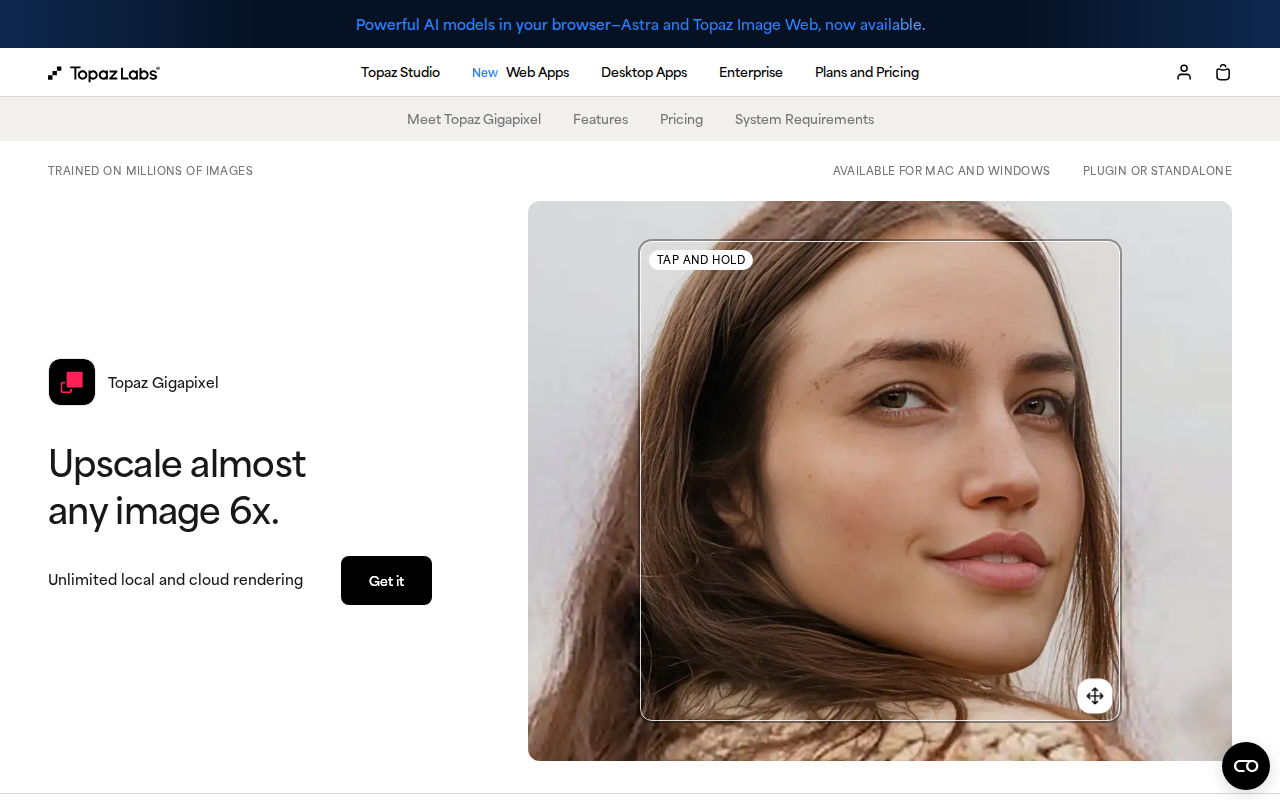
[Image: topaz-gigapixel.png – Topaz Gigapixel AI upscaling interface with before/after comparison]