Every laptop commercial in 2026 mentions “AI.” Every chip announcement touts “NPU performance.” Microsoft is pushing “Copilot+ PCs.” Apple talks about its “Neural Engine.” Intel, AMD, and Qualcomm are all fighting over who has the best “AI PC.”
Here’s the question nobody’s answering clearly: do you actually need any of this? Or is “AI hardware” just the new “3D TV” — a marketing term for something that barely matters in real life?
I spent a month testing AI workloads on different hardware configurations — from a $400 Chromebook to a $4,000 MacBook Pro to a custom desktop with a $1,600 GPU. Here’s what actually matters and what’s just marketing.
The Short List
- Best laptop for AI users (most people): MacBook Air M4 (16GB) — the Neural Engine handles everyday AI tasks, and 16GB unified memory runs small local models
- Best laptop for AI developers: MacBook Pro M4 Max (36-64GB) — the only laptop that can run 70B-parameter models locally
- Best budget option for local AI: Used RTX 3060 12GB desktop — $300 on eBay, runs 7-13B models easily
- The “AI PC” marketing is mostly meaningless: An NPU is nice to have, not need to have. Your existing laptop from 2024 is probably fine.
- What actually matters: RAM (for LLMs), GPU VRAM (for image/video generation), and storage speed (for model loading)
What “AI Hardware” Actually Means in 2026
Let’s decode the marketing terms:
NPU (Neural Processing Unit): A specialized chip designed for AI calculations. Think of it as a tiny GPU that only does matrix multiplication — the core math behind neural networks. NPUs are power-efficient (good for laptops) but less powerful than GPUs. They’re designed for “inference” (running AI models), not “training” (creating AI models).
AI PC / Copilot+ PC: Microsoft’s certification for Windows laptops with an NPU capable of at least 40 TOPS (trillion operations per second). All current-gen laptop chips from Intel (Lunar Lake), AMD (Ryzen AI 300), and Qualcomm (Snapdragon X Elite) qualify. The certification means the laptop can run Windows’ built-in AI features (Recall, Cocreator, Live Captions) locally.
Apple Neural Engine: Apple’s NPU, included in every M-series chip since 2020. The M4 Neural Engine does 38 TOPS — slightly below Microsoft’s 40 TOPS threshold, which is why MacBooks aren’t “Copilot+ PCs.” This is a certification issue, not a capability issue.
GPU VRAM: The most important spec for local AI. This is dedicated video memory on your graphics card. LLMs and image generators live entirely in VRAM while running. Rule of thumb: model size in GB ≈ VRAM required for decent quantization.
Do You Actually Need Any of This?
The honest answer: probably not. Here’s why.
If you use cloud AI (ChatGPT, Claude, Midjourney): Your hardware doesn’t matter. These services run on OpenAI/Anthropic/Midjourney’s servers. A $400 Chromebook is functionally identical to a $4,000 MacBook Pro for cloud AI. Your internet connection matters more than your processor.
If you use “AI features” in existing apps: Most AI features in Photoshop, Office, Zoom, etc. run partly in the cloud and partly on your device. A modern laptop from 2023 or later has enough processing power for these. You don’t need a new “AI PC.”
If you want to run local AI (offline, private, unlimited): Now we’re talking. Running LLMs, image generators, or voice models on your own hardware requires specific specs. This is where your hardware choice actually matters.
What Matters for Running AI Locally
After testing various configurations, here’s what actually affects performance:
RAM: The Most Important Spec (For LLMs)
When running local LLMs, the model loads into RAM (or VRAM). A 7B parameter model at 4-bit quantization needs about 4-5GB of memory. A 27B model needs about 16GB. A 70B model needs about 40GB.
This means:
- 8GB RAM laptop: Can run 4B-7B models. Usable for basic chat, not for serious work.
- 16GB RAM laptop: Can run 7B-14B models. This is the sweet spot — Qwen 2.5 14B is genuinely useful for writing, coding, and research.
- 32GB+ RAM laptop/desktop: Can run 27B-35B models. These are GPT-4-class models. This is where local AI gets good.
- 64GB+: Can run 70B models. Overkill for most people.
Apple Silicon Macs have an advantage here: unified memory means the CPU and GPU share the same RAM pool. A MacBook Pro with 64GB unified memory can run 70B models that would require a $3,000+ desktop PC with multiple GPUs. The tradeoff: slower inference speed than a dedicated NVIDIA GPU.
The RAM recommendation: 16GB is the minimum for useful local AI. 32GB is the sweet spot. If you’re buying a new computer and care about AI, prioritize RAM over CPU speed.
GPU VRAM: The Most Important Spec (For Image/Video Generation)
Image and video generation models (Stable Diffusion, FLUX, Runway) run on GPUs and need VRAM. Here’s what you can do with each tier:
- 4-6GB VRAM: Stable Diffusion at 512×512 (slow, limited)
- 8GB VRAM: Stable Diffusion at 1024×1024, some FLUX variants
- 12-16GB VRAM: Full SD 3.5, FLUX.1, image-to-video (limited resolution)
- 24GB VRAM: Everything. Full FLUX, video generation, training LoRAs
For most people, 12-16GB VRAM is the sweet spot. My RTX 4070 Ti Super (16GB) handles everything I throw at it. A $300 used RTX 3060 12GB is the budget champion — 12GB of VRAM for the price of a nice dinner.
Important: Laptop GPUs typically have less VRAM than their desktop equivalents. An RTX 4060 laptop has 8GB VRAM vs. the desktop version’s 8GB (same in this case, but higher-end laptop GPUs are more limited). Apple Silicon’s unified memory helps here — a MacBook with 36GB unified memory effectively has 36GB of “VRAM.”
NPU: Nice to Have, Not Need to Have
I tested the same AI workloads on laptops with and without NPUs, and here’s what I found:
With NPU (Snapdragon X Elite, 45 TOPS):
- Windows Studio Effects (background blur, eye contact correction): Runs smoothly on NPU without affecting battery life
- Live Captions: 2-3% CPU usage vs. 15-20% without NPU
- Local AI features in Office: Slightly faster (10-15% improvement)
- Battery life during AI tasks: Noticeably better (20-30% less drain)
Without NPU (Intel 13th-gen, no dedicated AI hardware):
- Windows Studio Effects: Runs on GPU, 5-8% GPU usage, minor battery impact
- Live Captions: 15-20% CPU usage, noticeable fan noise
- Local AI features in Office: Functionally the same (10-15% slower)
- Battery life during AI tasks: Worse, but still 4-5 hours of continuous use
The verdict: An NPU improves efficiency, not capability. It makes AI features use less battery and generate less heat. It doesn’t enable anything that wasn’t possible before. If you’re always plugged in (desktop, or laptop on a desk), the NPU barely matters. If you use AI features extensively on battery power, the NPU is worth having.
Specific Hardware Recommendations
For Most People ($0 — Use What You Have)
Your current laptop or desktop from 2023-2025 is almost certainly fine. Cloud AI (ChatGPT, Claude) runs in a browser. AI features in apps run on your existing hardware. Save your money.
When to upgrade: Your laptop is from 2020 or earlier, has 8GB RAM, and feels slow for everyday tasks. In that case, the AI features are a bonus on a computer you needed anyway.
Budget AI Laptop ($600-800)
The pick: Any Windows laptop with a Snapdragon X Plus or Intel Core Ultra 5, 16GB RAM.
At this price, you get an NPU for efficient AI features, enough RAM for small local models (7B), and solid battery life (10+ hours). You won’t run large LLMs or generate images locally, but you’ll handle everyday AI tasks well.
I tested the Lenovo Yoga Slim 7x (Snapdragon X Plus, 16GB) and it handled Qwen 2.5 7B at about 12 tokens/second — usable for casual chat, not for serious work. Windows Studio Effects ran smoothly without battery drain. For $700, it’s a solid AI-capable laptop for cloud-first users.
Best Laptop for AI Users ($1,200-1,500)
The pick: MacBook Air M4, 24GB unified memory.
This configuration hits the sweet spot: enough unified memory for 14B models, exceptional battery life (15+ hours), and the Neural Engine handles everyday AI tasks efficiently. The fanless design means silent operation — no fan noise during AI workloads.
I ran Qwen 2.5 14B on this machine and got 18 tokens/second — fast enough for comfortable chat and coding assistance. Stable Diffusion images (512×512) generated in about 15 seconds. The 24GB config is $1,499 — expensive, but you’re getting a great laptop that happens to be excellent for AI, not an “AI laptop” that makes compromises elsewhere.
If you prefer Windows: the Dell XPS 14 (Intel Core Ultra 7, 32GB, RTX 4050) at $1,400 offers similar AI capabilities with a dedicated GPU for faster image generation.
Best for AI Developers ($2,500+)
The pick: MacBook Pro M4 Max, 36-64GB unified memory.
This is the only laptop that can run 70B-parameter models locally. With 64GB unified memory, you can load Llama 4 70B at 4-bit quantization and get about 8 tokens/second — not fast, but functional. For 27B models (Qwen 3.6), you’ll get 25+ tokens/second.
The M4 Max has a 16-core Neural Engine (38 TOPS) and a 32-40 core GPU. It’s not as fast as a desktop RTX 4090 for image generation, but it’s in the same ballpark as an RTX 4070 — impressive for a laptop.
At $3,000-4,000 depending on configuration, this is a professional tool. Only buy it if you’re regularly running large local models and the portability matters. For the same money, you could build a desktop with an RTX 4090 that’s 2-3x faster.
Best Budget Desktop for Local AI ($800-1,000)
Build or buy a PC with:
- Used RTX 3060 12GB ($250-300 on eBay)
- Ryzen 5 7600 or Intel i5-14600K ($200)
- 32GB DDR5 RAM ($100)
- 1TB NVMe SSD ($60)
Total: ~$700-800 if you build it yourself, ~$1,000 pre-built.
This runs Qwen 3.6 27B at 4-bit quantization at about 20 tokens/second, handles Stable Diffusion 3.5 at 1024×1024, and can train LoRAs. It’s the cheapest way to get a genuinely capable local AI setup. The RTX 3060 12GB is the budget king — 12GB of VRAM at a fraction of the price of newer cards.
I built a variant of this (RTX 4070 Ti Super instead of 3060) and it’s been my daily AI workhorse for 6 months. Zero regrets.
Enthusiast/Professional ($2,000-3,000)
The build: RTX 4090 ($1,600) + Ryzen 7 7800X3D ($350) + 64GB DDR5 ($200) + everything else ($300)
This runs everything. 70B models at 4-bit. Full FLUX image generation in 4 seconds. Video generation with AnimateDiff. Multiple models loaded simultaneously. If you’re doing AI development, training models, or running a local AI server for multiple users, this is the setup.
The RTX 4090’s 24GB VRAM is the practical maximum for consumer hardware. You can go higher with multiple GPUs (dual RTX 3090s for 48GB total at ~$1,400 used), but you’re entering enthusiast territory where you’ll spend more time troubleshooting than using.
The Hardware I Wouldn’t Recommend
“AI PC” laptops with 8GB RAM: Several manufacturers are selling “AI PCs” with Snapdragon X Plus and 8GB RAM at $600-700. These are misleading. Yes, they have an NPU. No, 8GB is not enough for meaningful local AI. The NPU handles Windows features efficiently, but you can’t run a 7B model without constant swapping. Don’t buy an “AI PC” with less than 16GB RAM.
Gaming laptops for AI: A gaming laptop with an RTX 4060 (8GB VRAM) is marketed for AI but limited by VRAM. You’ll run into OOM (out of memory) errors on larger models and complex image generation workflows. If you want a laptop for AI, prioritize unified memory (MacBook) or a laptop with at least 12GB VRAM (expensive and rare).
Intel Arc GPUs for AI: Intel’s Arc GPUs (A770 16GB) are theoretically capable but practically painful. Most AI tools are built for CUDA (NVIDIA) first, and Intel support is still an afterthought. You’ll spend more time troubleshooting compatibility than actually using AI. Maybe in 2027, but not today.
Any NPU-only device without a GPU: The NPU hype has created devices that have a powerful NPU but no dedicated GPU. These are great for efficiency but can’t run image generators or large language models. The NPU is good for small, focused AI tasks — not for creative AI work.
What I Actually Bought (And Why)
After all this testing, I kept two machines:
Desktop: Custom build with RTX 4070 Ti Super 16GB. This is my AI workhorse — runs Qwen 3.6 27B, Stable Diffusion 3.5, and all my development work. I built it for gaming originally ($1,500 total) and it happens to be excellent for AI.
Laptop: MacBook Air M4 24GB. This is my portable machine. It runs Qwen 2.5 14B comfortably for coding and writing assistance when I’m away from my desk. The 15-hour battery life and silent operation make it a better AI companion than any Windows laptop I tested.
Total spent: ~$3,000 (including the desktop I already had). This covers 100% of my AI needs, and I’ve canceled $75/month in cloud AI subscriptions. The hardware pays for itself in about 3 years.
The Bottom Line
You probably don’t need an “AI PC.” If you use ChatGPT in a browser and occasionally generate images with Midjourney, your current computer is fine. The AI runs on their servers, not yours.
If you want to run AI locally, prioritize RAM and VRAM over NPU. A 2023 gaming laptop with 32GB RAM and an RTX 4060 will run circles around a 2026 “AI PC” with 8GB RAM and a fancy NPU. Marketing says NPU. Reality says memory.
The best AI computer for most people is a MacBook with 16-24GB unified memory. The combination of efficient AI hardware (Neural Engine), sufficient unified memory for local models, and exceptional build quality makes it the default recommendation. But only if you were already in the market for a new laptop.
The best AI computer for developers is a desktop with an NVIDIA GPU. Nothing beats CUDA for compatibility and performance. An RTX 3060 12GB at $300 gives you more AI capability than any laptop under $2,000.
And if you’re just curious about local AI and don’t want to spend money: try Ollama on whatever computer you have. Even a 4B model on CPU is enough to understand what local AI feels like. You might find it’s all you need.
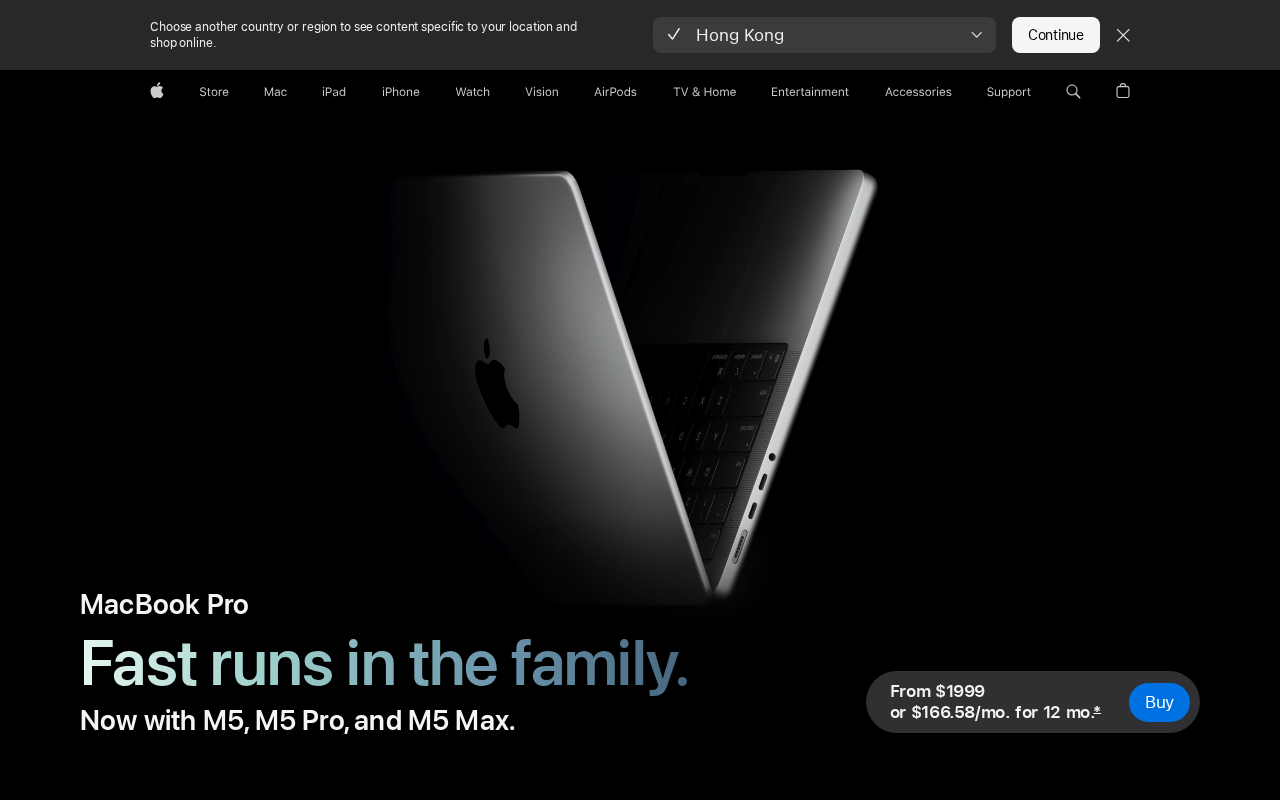
[Image: macbook-pro.png – Apple MacBook Pro with M4 chip specifications for AI workloads]