My Chrome toolbar has 31 extensions. Before writing this article, I disabled all of them for one week, then added back only the ones I genuinely missed. 21 never came back. 10 did — and 7 of those 10 have meaningful AI features.
Here they are, ranked by how much I missed them during my extension-free week.
The Short List
- Best AI writing assistant: Grammarly — still the king, now with much better AI
- Best AI meeting assistant: Fireflies.ai — makes meetings searchable
- Best AI email helper: Superhuman (technically an app, not extension, but it has Chrome integration)
- Best free AI extension: Merlin AI — surprisingly good for a free tool
- Best productivity AI: Monica — the all-in-one that actually delivers
- Most disappointing: Several popular extensions I’ll name below that turned out to be data-harvesting fronts
What I Looked For
Before installing any extension, I checked three things:
1. Privacy policy: What data does it collect, and who does it share it with?
2. Actual utility: Does it save me time, or just add noise?
3. Performance impact: Does it slow down Chrome or drain my laptop battery?
Several popular extensions failed the privacy test immediately. We’ll get to those.
1. Grammarly — The Writing Assistant That Got Smarter
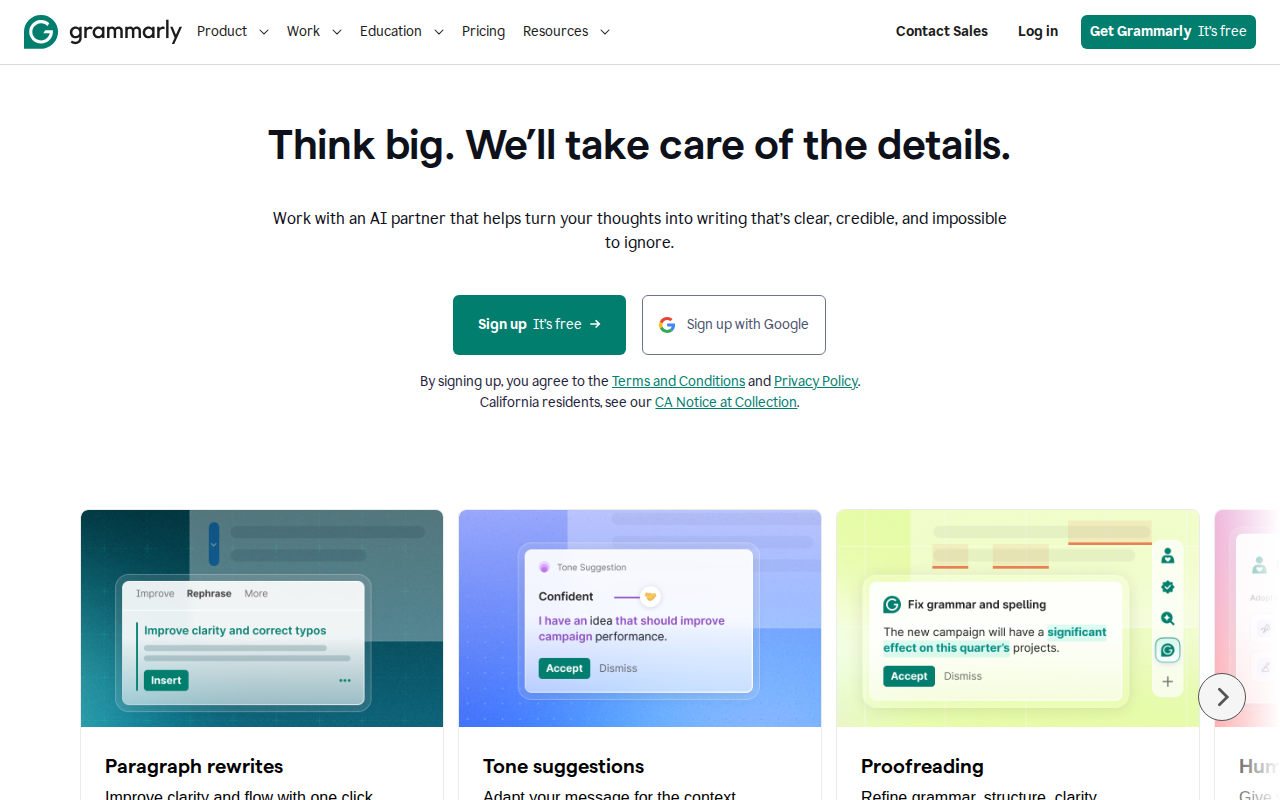
Grammarly has been around forever (in internet years), but its 2026 AI features are a genuine upgrade over previous versions.
What the AI does now:- Contextual tone suggestions: Instead of just flagging “passive voice,” Grammarly now understands WHO you’re writing to and suggests tone shifts. Writing a complaint to a vendor? It’ll suggest a firmer tone. Writing a thank-you email to a client? It’ll dial it back.
- “Know your audience”: You can set an audience profile (e.g., “technical team,” “executive,” “customer support”), and Grammarly adjusts its suggestions. For technical writing, it flags jargon and suggests clarifications. For executive summaries, it flags detail overload.
- Generative AI writing: You can highlight text and ask Grammarly to “make this more concise,” “add more detail,” or “rewrite for a blog post.” It’s like having ChatGPT inline, but with better understanding of grammar and style conventions.
- Strategic suggestions: “This paragraph is too long for an email — consider breaking it up.” These are editorial suggestions, not just grammar fixes.
2. Merlin AI — The Free All-in-One That Actually Works
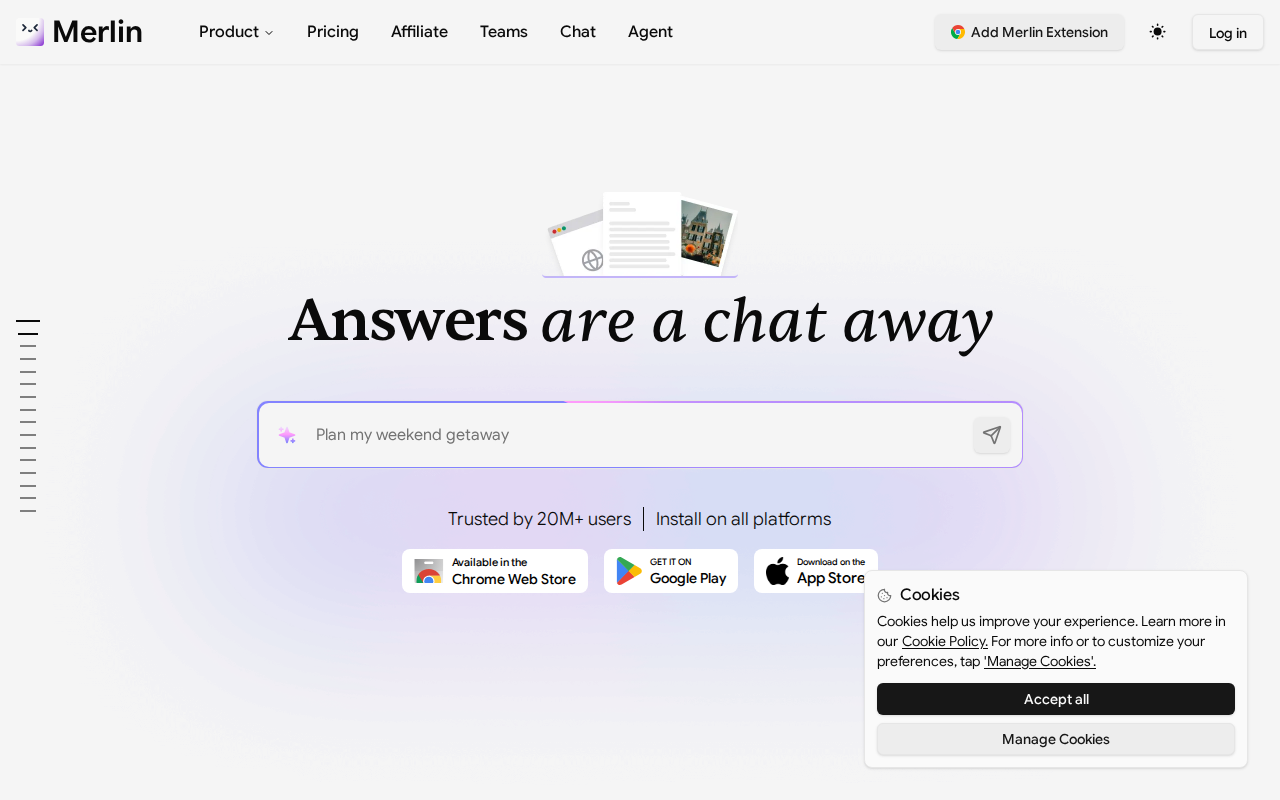
Merlin AI is a ChatGPT-powered extension that works on any webpage. Select text, press Ctrl+M, and Merlin can summarize, explain, rewrite, or translate it. It also works on YouTube (summarize videos), Google Docs, Gmail, and basically anywhere you can select text.
What the AI does:- Summarize any webpage or YouTube video with one click
- Chat with any webpage — ask questions about the content
- Write replies in Gmail, LinkedIn, Twitter with AI assistance
- Generate images (DALL-E integration)
- Code explanations on GitHub and Stack Overflow
3. Fireflies.ai — Make Your Meetings Searchable
Fireflies is a meeting transcription bot that joins your Google Meet, Zoom, and Teams calls, records everything, transcribes it, and makes it searchable. I resisted using a meeting bot for years because it felt creepy. Then I missed an important action item from a client call and lost $1,200. Now I use Fireflies for every meeting.
What the AI does:- Joins meetings automatically (you set which ones)
- Real-time transcription with speaker identification
- AI-generated meeting summaries with action items
- Search across all your meetings (“find the meeting where we discussed Q3 budget”)
- Sentiment analysis (“the client seemed frustrated during the pricing discussion”)
- Integration with CRM, project management, and Slack
4. Monica — The Overachiever Swiss Army Knife
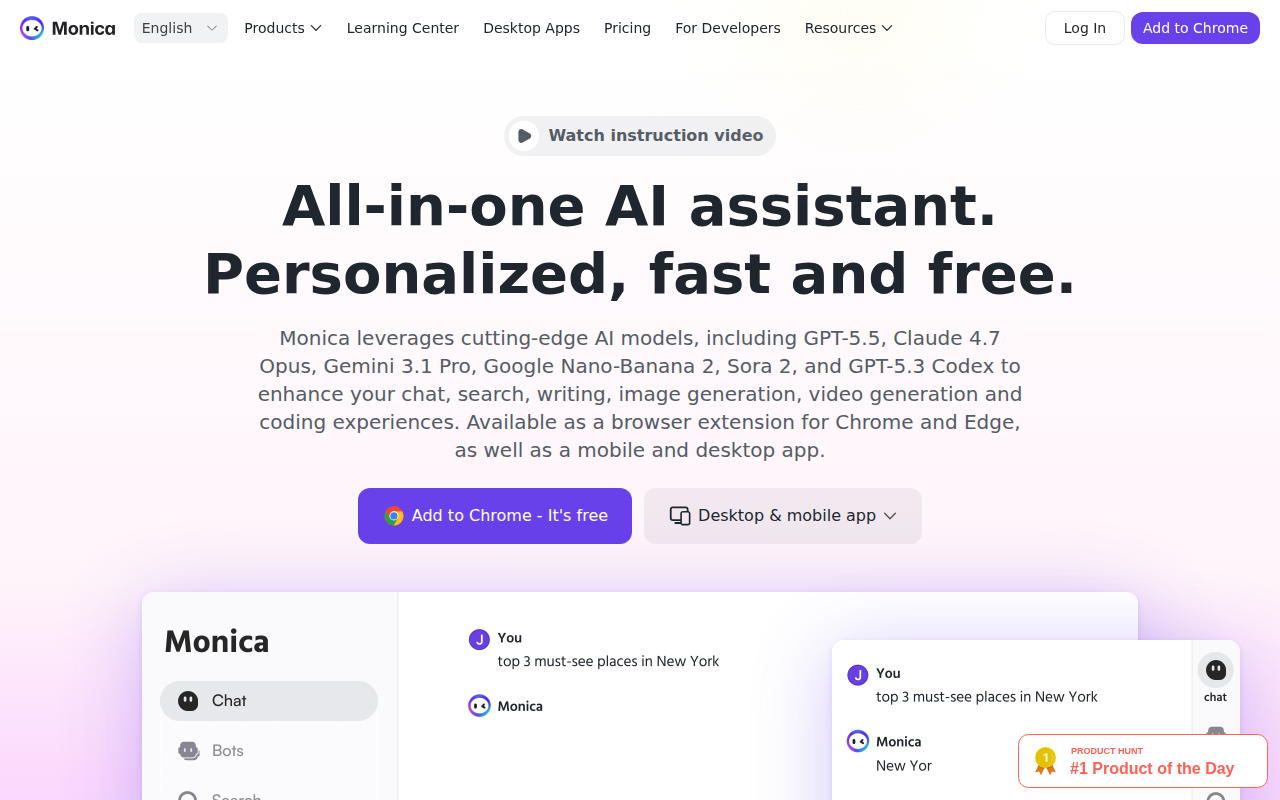
Monica is like Merlin AI’s ambitious cousin that tries to do EVERYTHING. Chat with PDFs. Summarize YouTube videos. Write emails. Generate images. Translate text. Search the web with AI. The feature list is absurdly long.
What’s actually good:- ChatPDF: Upload a PDF, ask questions about it. Better than Adobe’s AI Assistant for research papers and contracts.
- YouTube summarizer: Similar to Merlin, slightly slower but sometimes more detailed.
- Email composer: Works in Gmail, decent AI-generated replies with tone control.
- AI reading mode: Restructures any webpage into a clean, readable format with AI-generated section summaries.
- Image generation: Just a wrapper around DALL-E/Midjourney APIs. No real added value.
- Translation: Fine for basic stuff, unreliable for technical or nuanced text.
- The interface: There’s SO MUCH going on. It takes a week to figure out what’s useful and what’s noise.
5. Superhuman — Email at Warp Speed (App + Chrome Integration)
Superhuman isn’t a Chrome extension — it’s a full email client with Chrome integration. But since it transforms how I handle email in my browser, it belongs on this list.
What the AI does:- AI reply generation that learns your writing style
- “Instant Reply” for one-click responses to routine emails
- Split Inbox: AI categorizes emails into Important, Newsletters, Cold Email, etc.
- Follow-up reminders: “Remind me if no reply in 3 days”
- Snippets (templates) with AI variable filling
The Extensions I Deleted After a Week (And Why)
HyperWrite: Decent AI writing assistant, but it wanted access to my browsing history “to provide contextual suggestions.” That’s a data-harvesting red flag. Deleted. Compose AI: Free AI writing autocomplete. Sounds great. The privacy policy says they “may share aggregated data with third parties.” “Aggregated data” from an extension that reads everything you type means they’re selling your anonymized writing patterns. No thanks. Wiseone: AI-powered reading companion. The concept is good (explain complex topics while you read), but the execution is clumsy — it kept popping up explanations for things I already understood. More distracting than helpful. MaxAI: Claims to bring AI to every webpage. In reality, it just opens a ChatGPT sidebar. You can do the same thing by keeping chat.openai.com in a pinned tab. Pointless. Synthesia Browser Extension: Tried to generate AI avatars for every website I visited. Cool tech, absolutely no practical use case for daily browsing. Uninstalled after it offered to create an AI avatar for my bank’s login page.Privacy Warning: What These Extensions Actually See
Here’s something most people don’t realize: Chrome extensions with broad permissions can read EVERYTHING you do in your browser. Every webpage you visit. Every email you write. Every password field you type into (unless the extension explicitly excludes password fields, which most don’t bother with).
Before installing any AI extension, check:
1. What permissions does it request? “Read and change all your data on all websites” is a red flag unless the extension genuinely needs it (Grammarly does, for inline suggestions).
2. Who made it? Random developers in jurisdictions with weak privacy laws? Pass.
3. What’s their business model? If it’s free and doesn’t offer a paid plan, YOU are the product. Your data is being sold.
The 10 extensions I kept all have clear business models (freemium with paid upgrades) and privacy policies written in plain English, not legalese.
The Bottom Line
You don’t need 10 AI Chrome extensions. You probably need 3-4:
- Grammarly for writing
- One AI assistant (Merlin or Monica) for web-based AI tasks
- Fireflies if you take a lot of meetings
- Superhuman if email is eating your life
The rest are nice-to-haves that you’ll install, use twice, and forget about. The extension graveyard is real — don’t add to it.
[Image: merlin-site.png – Merlin AI summarizing a YouTube video]